CPU GPU Bottleneck Calculator
Our CPU GPU Bottleneck Calculator analyzes your entire system ecosystem — CPU, GPU, RAM speed, RAM channels, cooling efficiency, power limits, resolution, quality settings, ray tracing, upscaling technology, API target, driver optimization, and workload type — to deliver results you can actually trust.
No technical skill required. No complicated settings. Just select your components and get instant answers.
| SPECIFICATION | CPU | GPU | ADVANTAGE | IMPACT |
|---|
| METRIC | CPU VALUE | GPU VALUE | NOTES |
|---|
| GAME / APPLICATION | GENRE | CPU DEMAND | EST. FPS | QUALITY | LIMITING FACTOR |
|---|
* Estimates based on synthetic benchmark data and weighted hardware scoring. Actual FPS may vary by ±15-25% depending on game engine, scene complexity, driver optimization, and background processes.
THE FIRST BOTTLENECK CALCULATOR THAT ACTUALLY UNDERSTANDS YOUR PC
Is your $3,000 gaming rig running like a $1,200 prebuilt?
You’re not alone. 9 out of 10 PC users have a bottleneck they don’t know about — silently stealing FPS, causing stutters, and wasting the money you invested.
The problem isn’t your hardware. It’s the mismatch between your components. A powerful GPU paired with a weak CPU is like a Ferrari engine in a Civic — impressive on paper, disappointing on the road.
Our PC bottleneck calculator doesn’t just calculate. It diagnoses.
While other tools compare two numbers and guess, our Weighted Throughput v3 algorithm analyzes 14 real-world factors — including thermal headroom, RAM channel mode, upscaling technology, and game-specific workloads — to pinpoint exactly where your performance leaks.
What Makes CPU GPU Bottleneck Tester Different?
Our bottleneck calculator analyzes 14 real-world factors to deliver surgical precision.
14-Factor Analysis Engine
Most tools check two boxes and call it a day. Our tool analyzes 14 distinct performance factors — including thermal headroom, RAM channel mode, upscaling technology, game-specific workloads, and cooling efficiency — to give you results that actually match real-world performance. No more guessing why your system feels slower than the numbers suggest.
Game-Specific FPS Estimates
Synthetic benchmarks lie. Real games tell the truth. Our bottleneck analyzer predicts your FPS in Cyberpunk 2077, Counter-Strike 2, Valorant, Warzone, and 11 other popular titles — each weighted by its unique CPU/GPU bias. Know exactly how your system performs in the games you actually play, not just theoretical math.
Thermal Analysis & Throttle Detection
Heat is the silent FPS thief. Our tool Thermal throttling test calculates your estimated CPU and GPU temperatures based on your components, overclock, cooling solution, and power limits. See your throttle risk in real-time — because a perfectly balanced system that thermal throttles still underperforms. Most calculators ignore this entirely.
Smart Upgrade Paths
Tired of throwing money at the wrong component? Our Upgrade advisor doesn't just tell you that you have a bottleneck — it tells you exactly which component to upgrade and suggests specific models that balance with your existing hardware. Stop replacing perfectly good parts. Start upgrading with precision.
Visual Radar Comparison
Numbers are great. Visuals are better. Our 6-axis radar chart compares your CPU and GPU across Gaming FPS, Content Creation, Thermals, Memory Bandwidth, Productivity, and Multi-Core performance. One glance tells you exactly where your system excels — and where it falls behind.
Frame Generation Support
Modern gaming isn't just about raw power — it's about smart rendering. Our CPU and GPU bottleneck calculator accounts for DLSS (NVIDIA), FSR (AMD), XeSS (Intel), and Frame Generation technologies, showing you exactly how much performance boost to expect. Competitors treat upscaling like it doesn't exist.
181+ Components
Using last year's database for this year's hardware? That's how mistakes happen. NEXUS features 84 CPUs and 97 GPUs — including the latest Intel Core Ultra, AMD Zen 5, NVIDIA RTX 50 series, and Intel Arc Battlemage — updated weekly. When new hardware drops, we're ready within days, not months.
Completely Free, Forever
Every feature you see — all 14 factors, game-specific FPS, thermal analysis, session history, visual radar — is completely free. No "upgrade to pro" buttons. No daily limits. No hidden fees. We believe everyone deserves to optimize their PC without paying for the privilege.
What Is a PC Bottleneck?
A PC bottleneck happens when one component in your system is too slow for the others, forcing faster components to wait and preventing your computer from reaching its full potential. Think of your PC as a relay race team. If three runners are Olympic sprinters but the fourth runs like your uncle at a family barbecue, the whole team finishes slow. Your fastest runners spend most of their time waiting, not winning.
In technical terms: When your CPU (processor) can’t feed data fast enough to your GPU (graphics card), or your GPU can’t render frames quickly enough for your CPU, or your RAM is too small to hold what both need — you have a bottleneck. And bottlenecks cost you FPS, render time, and responsiveness.
The Hard Truth About Modern PCs
Here’s what most people don’t realize: Your expensive hardware can still underperform — even if it’s brand new.
A bottleneck isn’t about the age of your parts. It’s about the balance between them. You can pair a $1,600 RTX 4090 with a $200 CPU and get worse gaming performance than someone with a $800 mid-range system that’s properly matched. The expensive GPU spends most of its time waiting for the cheap CPU to catch up. You paid for Ferrari speed but got Civic performance because the engine and transmission don’t match.
This is why so many gamers, editors, and streamers experience:
Low FPS despite powerful graphics cards
Stuttering in games that should run smoothly
Slow rendering during video exports
Lag when multitasking even with “enough” RAM
Inconsistent performance that comes and goes
The problem isn’t that your parts are bad. The problem is they’re not working together.
How Bottlenecks Actually Work
Imagine data flowing through your PC like water through pipes:
The CPU is the pump — it processes instructions and sends data
The GPU is the filter — it renders what you see on screen
RAM is the reservoir — it holds data for quick access
Storage is the source — where data lives permanently
Cooling keeps everything from overheating and slowing down
A bottleneck happens when one pipe is narrower than the others. Water backs up. Flow slows. The whole system runs at the speed of the narrowest pipe — not the widest.
If your CPU pipe is narrow, your GPU starves for data → CPU bottleneck
If your GPU pipe is narrow, frames render slowly → GPU bottleneck
If your RAM pipe is narrow, everything waits for memory → RAM bottleneck
If your cooling fails, everything slows down to prevent damage → Thermal bottleneck
The Four Main Bottleneck Types
Understanding the different types of bottlenecks is the first step toward diagnosing why your expensive PC isn’t performing as expected. Each component in your system can become the weak link that holds everything else back. Here’s a comprehensive overview of the five main bottleneck types you need to know.
🔵 CPU BOTTLENECK
A CPU bottleneck occurs when your processor cannot keep up with the demands of your system, particularly struggling to feed data fast enough to your graphics card . The CPU handles critical non-graphical tasks including game logic, AI behavior, physics calculations, audio processing, and network encoding . When the processor is too slow to process calculations or deliver instructions on time, your GPU is forced to wait instead of operating at full capacity . This results in performance issues even if you own a powerful graphics card.
Key Signs
Usage imbalance: CPU operates at 90-100% while GPU runs below 70-80%
Stuttering in busy scenes: Frame drops when many characters or physics calculations appear
Low FPS despite powerful GPU: Your expensive graphics card sits idle waiting for data
Delayed input response: Button presses take over a second to register
Poor performance in CPU-heavy games: Strategy titles, simulators, and open-world RPGs suffer most
Common Causes & Solutions
| Cause | Why It Creates a Bottleneck | Our Recommended Solution |
|---|---|---|
| Low Core/Thread Count | Modern games rely on parallel processing; fewer cores struggle with simultaneous tasks | Upgrade to a modern CPU with at least 6 cores and 12 threads for balanced gaming |
| Weak IPC Performance | Low instructions-per-clock limits performance in CPU-intensive workloads | Choose a CPU with strong single-core performance and higher IPC architecture |
| Small CPU Cache | Limited L3 cache increases memory access latency, reducing gaming efficiency | Upgrade to newer architecture with larger cache (like AMD 3D V-Cache models) |
| Thermal Throttling | Poor cooling causes clock speed reduction to prevent overheating | Improve cooling with better airflow and quality CPU coolers |
| Excessive Background Processes | Background apps consume CPU resources needed for active workloads | Disable unnecessary startup programs and close unused applications |
Our CPU Bottleneck Calculator Advantage
Our 14-factor analysis doesn’t just tell you that you have a CPU bottleneck — it quantifies exactly how much your processor limits performance based on your specific use case. The game-specific FPS estimates show which titles are most affected, and our thermal analysis predicts whether heat is silently throttling your CPU.
🔴 GPU BOTTLENECK
A GPU bottleneck occurs when your graphics card cannot keep up with your CPU’s speed and the visual demands of your applications . The GPU handles all graphical rendering including textures, shadows, lighting, shaders, and visual effects . With hundreds or even thousands of small cores designed for parallel processing, GPUs excel at repetitive calculations but can become overwhelmed when workloads exceed their capacity. This is common in graphically demanding games that push resolution, textures, and visual fidelity to their limits .
Key Signs
Usage imbalance: GPU at 90-100% while CPU runs below 70-80%
Sudden FPS drops in intense scenes: When complex visuals overload the graphics card
Poor performance at high resolutions: 4K gaming reveals GPU limitations
Games lag with max settings: Ultra presets overwhelm the graphics processor
Ray tracing cripples frame rates: RT effects demand enormous GPU resources
Common Causes & Solutions
| Cause | Why It Creates a Bottleneck | Our Recommended Solution |
|---|---|---|
| Underpowered GPU | Can’t handle modern games or high-resolution workloads, causing low FPS | Upgrade to a latest-generation GPU appropriate for your target resolution |
| Insufficient VRAM | Limited video memory slows rendering of high-res textures and large models | Choose GPU with adequate VRAM (8GB+ for 1440p, 12GB+ for 4K gaming) |
| Ultra Settings Overload | Pushing graphics settings beyond GPU capability causes frame drops | Reduce settings to High/Medium or upgrade GPU to handle Ultra smoothly |
| High Resolution Demands | More pixels exponentially increase GPU workload | Lower resolution or enable upscaling (DLSS/FSR/XeSS) |
| Outdated Drivers | Old drivers reduce stability and leave performance on the table | Keep drivers updated via GeForce Experience or AMD Adrenalin |
| Overheating | Poor airflow causes thermal throttling, lowering GPU performance | Clean GPU/case, improve airflow, or upgrade cooling solution |
Our GPU Calculator Advantage
Our calculator uniquely supports AI upscaling technologies (DLSS, FSR, XeSS, Frame Gen) with realistic boost calculations — competitors ignore these entirely. The game-specific FPS estimates show exactly how each title performs with your GPU, and VRAM analysis flags potential capacity issues before they cause problems.
RAM BOTTLENECK
A RAM bottleneck occurs when your system lacks sufficient memory capacity or speed to handle active tasks efficiently . RAM serves as the high-speed workspace where active programs, games, and system processes live. When memory runs out, your PC is forced to rely on much slower storage (SSD or HDD) as “virtual memory” — a process called memory swapping that instantly reduces performance by an order of magnitude . Even powerful CPUs and GPUs cannot perform properly if they constantly wait for data from slow storage.
Key Signs
High memory usage: RAM consistently at 90-100% during normal tasks
Frequent stuttering: When switching applications or loading new game areas
System slowdown despite strong components: Powerful CPU/GPU underperform due to memory starvation
Excessive disk activity: Storage drive light constantly active during multitasking
Application crashes: Programs close unexpectedly when memory limits reached
Common Causes & Solutions
| Cause | Why It Creates a Bottleneck | Our Recommended Solution |
|---|---|---|
| Insufficient Capacity | System runs out of memory and relies on slow storage for swapping | Upgrade to 16GB for gaming, 32GB for content creation and multitasking |
| Single-Channel Mode | Limited memory bandwidth starves the CPU of data, reducing performance by 10-15% | Install RAM in dual-channel configuration (slots 2 and 4) for proper pairing |
| Slow RAM Speed | Lower frequency increases latency and delays data access for CPU | Use faster RAM (3200MHz+ for DDR4, 5600MHz+ for DDR5) supported by your motherboard |
| XMP/DOCP Disabled | RAM runs at default JEDEC speeds instead of rated performance | Enable XMP (Intel) or DOCP/EXPO (AMD) in BIOS for advertised speeds |
| Excessive Background Apps | Unnecessary programs consume precious memory capacity | Close unused applications and reduce startup programs |
Our RAM Bottleneck Calculator Advantage
Our RAM channel detection identifies whether you’re running single-channel (crippling performance) or dual-channel (optimal). The RAM speed multiplier accurately models how faster memory boosts CPU performance. We also provide specific capacity recommendations based on your use case — not generic advice.
THERMAL BOTTLENECK
A thermal bottleneck (or thermal throttling) occurs when components get too hot and automatically reduce clock speeds to prevent permanent damage . Modern CPUs and GPUs are designed to push themselves to thermal limits — they boost clock speeds as high as possible until temperature or power constraints force them to back off . When cooling is inadequate, this throttling happens aggressively, causing performance to plummet. What makes thermal bottlenecks insidious is that a perfectly balanced system on paper can underperform dramatically if heat isn’t managed properly.
Key Signs
Performance drops after 15-20 minutes: System starts fast, then slows down as heat builds
Inconsistent frame rates: FPS high at session start, lower later
Loud fan noise: Cooling system working overtime to manage heat
Sudden stuttering in mid-game: Throttling kicks in during intense scenes
High temperatures: Components consistently above 85-90°C under load
Common Causes & Solutions
| Cause | Why It Creates a Bottleneck | Our Recommended Solution |
|---|---|---|
| Inadequate Cooling | Stock coolers or poor airflow cannot dissipate heat from high-power components | Upgrade to quality air cooler or AIO liquid cooling appropriate for your CPU/GPU TDP |
| Poor Case Airflow | Stagnant air allows heat to accumulate, raising component temperatures | Optimize case fan configuration (front intake, rear/top exhaust) and cable management |
| Dust Accumulation | Dust blocks heatsinks and fans, reducing cooling efficiency | Regularly clean your PC with compressed air, especially radiators and fans |
| High Ambient Temperature | Room temperature affects cooling capacity; hotter rooms mean hotter components | Improve room ventilation or air conditioning for serious workstations |
| Overclocking Without Adequate Cooling | Pushing clock speeds increases heat output beyond cooling capacity | Reduce overclock or improve cooling before pushing voltage |
Why Temperature Alone Doesn't Tell the Story
Modern CPUs are designed to run hot — seeing 80-85°C under load isn’t automatically a problem . What matters is whether your components are thermal throttling (reducing clocks to cool down). A CPU running at 85°C maintaining full boost clocks is fine. The same CPU dropping clocks at 85°C due to thermal limits is a bottleneck .
Our Thermal Bottleneck Analyzer Advantage
Our thermal analysis is unique among bottleneck calculators — competitors completely ignore heat. We predict your CPU and GPU temperatures based on component TDP, overclock settings, and cooling solution. The throttle risk assessment (LOW/MODERATE/HIGH) tells you whether heat will actually impact your performance, not just whether numbers look scary.
DISPLAY BOTTLENECK
A display bottleneck occurs when your monitor cannot keep up with your system’s output capabilities, preventing you from seeing the performance you’ve paid for . This is the most overlooked bottleneck type — gamers upgrade CPUs and GPUs while using the same monitor for years, never realizing their display is hiding their system’s true potential . Your monitor is a performance component just like your RAM, CPU, or GPU, and it can bottleneck your experience just as severely .
Key Signs
High FPS but choppy motion: Game counters show 144+ FPS but motion doesn’t look smooth
Screen tearing: Horizontal splits during fast movement (GPU outruns monitor refresh)
Ghosting/smearing: Fast-moving objects leave trails (slow pixel response time)
Washed-out visuals: Colors and contrast look flat despite powerful GPU rendering beautiful graphics
Can’t see detail: Low resolution hides the visual fidelity your GPU works hard to produce
Common Causes & Solutions
| Cause | Why It Creates a Bottleneck | Our Recommended Solution |
|---|---|---|
| Low Refresh Rate | 60Hz monitor can only show 60 fps; anything beyond is wasted | Match monitor refresh rate to your system’s FPS capability (144Hz+ for gaming) |
| Mismatched Resolution | 1080p monitor can’t display 4K detail your GPU renders | Choose resolution appropriate for your GPU’s capability (see our matching guide) |
| Slow Pixel Response | Pixels can’t change color fast enough for high refresh rates, causing smearing | Look for monitors with fast GtG response times (1-4ms) and appropriate panel technology |
| Limited Color Gamut | Monitor can’t display the full color range your GPU outputs | For content creation, invest in monitors with wide color gamut (DCI-P3, Adobe RGB) |
| No Adaptive Sync | Lack of G-Sync/FreeSync causes tearing when frame rates fluctuate | Choose monitors with VRR technology matching your GPU brand |
Resolution & Performance Relationship
Understanding how resolution affects GPU load is critical :
1080p Gaming: ~1.6x GPU workload relative to 1440p baseline
1440p Gaming: The balanced sweet spot (our reference baseline)
4K Gaming: ~0.52x relative performance (meaning 4K is roughly twice as demanding as 1440p)
Ultrawide Resolutions: 30-40% more demanding than standard 16:9 at same height
Our Display Bottleneck Calculator Advantage
Our resolution multipliers accurately model how different resolutions affect GPU performance. The target FPS setting compares your system’s capability against your monitor’s potential — telling you not just what FPS you’ll get, but whether your display can show it. This is information no other bottleneck calculator provides.
Optimized Key Factors in Bottleneck Calculation
When our Weighted Throughput v3 algorithm analyzes your PC, it evaluates six critical factors that determine real-world performance. Here’s how each one impacts your system:
🔵 CENTRAL PROCESSING UNIT (CPU)
The processor is your system’s brain, handling game logic, physics calculations, AI behavior, and directing the GPU on what to render . A CPU bottleneck occurs when the processor can’t feed data fast enough to your graphics card.
What Our Calculator Analyzes:
Core & thread count – Modern games benefit from 6+ cores; 4-core CPUs are still viable but show their limits in complex scenes
Clock speed & IPC – Instructions Per Clock determines how much work each cycle completes
Cache size (L3) – Larger cache reduces memory access latency
Thermal headroom – CPUs throttle around 90-100°C, reducing performance by 20-30%
Our tool advantage: We factor your exact CPU model, overclock percentage, RAM speed impact, and cooling solution to calculate real-world effective performance.
🔴 GRAPHICS PROCESSING UNIT (GPU)
The graphics card renders everything you see. A GPU bottleneck happens when your graphics card can’t keep up with the CPU’s instructions or the graphical demands of your applications
What Our Calculator Analyzes:
Core count & architecture – More shaders = more parallel processing power
VRAM capacity – Critical for high-resolution textures; 8GB minimum for 1080p, 12GB+ for 4K
Memory bandwidth – How fast the GPU can access its VRAM
Driver optimization – Latest drivers can improve performance by 5-15%
Our tool advantage: We incorporate upscaling technologies (DLSS, FSR, XeSS) and frame generation, which can boost effective FPS by 40-80% .
SCREEN RESOLUTION
Resolution determines how many pixels your GPU must render. This single factor can completely shift where your bottleneck lies
How Resolution Changes Everything:
1080p (Full HD) – CPU-dependent; faster processors matter more here
1440p (QHD) – Balanced sweet spot; equal CPU/GPU consideration
4K (Ultra HD) – GPU-dependent; graphics card becomes primary factor
Ultrawide formats – Wider field of view increases GPU load beyond standard resolutions
The rule: Lower resolutions expose CPU limits. Higher resolutions expose GPU limits. A system balanced for 4K may be CPU-limited at 1080p .
Our tool advantage: We apply resolution-specific multipliers based on real benchmark data, not theoretical math.
RAM (MEMORY)
RAM is your system’s short-term memory, holding data the CPU needs immediately. A RAM bottleneck occurs when capacity, speed, or configuration limits performance
What Our Calculator Analyzes:
1. Memory Channels
Single-channel – One lane for data; halves memory bandwidth
Dual-channel – Two lanes; standard for modern performance
Quad-channel – Four lanes; workstation/server territory
Capacity Impact:
8GB – Minimum for basic tasks; bottlenecks in modern games
16GB – Sweet spot for gaming and general use
32GB+ – Content creation, heavy multitasking, future-proofing
Speed Matters:
DDR4-3200 vs DDR5-6000 can affect CPU performance by 10-15% in CPU-bound scenarios
Our PC bottleneck checker advantage: We detect your RAM configuration (single/dual/quad) and speed, then calculate the exact impact on your CPU’s effective performance.
STORAGE
Storage speed affects how fast your system loads games, textures, and levels. A storage bottleneck happens when the drive can’t feed data fast enough to RAM and CPU .
Storage Speed Tiers:
| Storage Type | Typical Speed | Use Case |
|---|---|---|
| 5400 RPM HDD | 60-100 MB/s | Cold storage, archives |
| 7200 RPM HDD | 80-160 MB/s | Budget builds, secondary storage |
| SATA SSD | 400-550 MB/s | OS drive, budget gaming |
| NVMe Gen3 | 2,000-3,500 MB/s | Mainstream gaming |
| NVMe Gen4 | 5,000-7,000 MB/s | High-end gaming, 4K editing |
| NVMe Gen5 | 10,000+ MB/s | Professional workstations |
Real-world impact: Games on NVMe SSDs load 70% faster than HDDs and eliminate texture pop-in in open-world titles.
Our tool advantage: While we don’t directly measure storage speed, our recommendations flag when slow storage may be causing long load times or texture streaming issues.
COOLING & THERMALS
The hidden bottleneck. Even perfectly matched components will underperform if heat forces them to slow down
How Cooling Affects Performance:
Thermal throttling – CPUs/GPUs reduce clock speeds around 90-100°C to prevent damage
Sustained performance – Better cooling maintains boost clocks longer
Power delivery – Higher temperatures increase electrical resistance, reducing efficiency
Cooling Tiers We Analyze:
Poor (Stock cooler, restricted airflow) – Significant throttling risk
Average (Standard air cooling) – Moderate thermal headroom
Good (Premium air cooling) – Sustained boost clocks
Excellent (AIO liquid, custom loop) – Maximum thermal performance
What Our Calculator Predicts:
Estimated CPU temperature under load
Estimated GPU temperature under load
Throttle risk assessment (Low/Moderate/High)
Effective performance loss if throttling occurs
Our bottleneck analyzer advantage: We’re the only calculator that models thermal impact. A system that’s balanced on paper but thermal throttles in reality still underperforms — we show you why.
3 Critical Utilization Patterns That Reveal Your Bottleneck
Your CPU and GPU usage percentages tell a story about your system’s health. By watching how they behave under load, you can diagnose bottlenecks without any special tools. Here are the three scenarios our Weighted Throughput v3 algorithm analyzes — and what they mean for your performance:
SCENARIO 1: Low CPU Usage + Low GPU Usage
The “Why Is My Expensive PC So Slow?” Scenario
What you’ll see: CPU below 50%, GPU below 50%, yet performance feels sluggish.
What it means: Your task simply isn’t demanding enough to wake up your components, or something else is limiting performance. This often indicates:
A game running on integrated graphics instead of your discrete GPU
Power saving settings capping performance
A driver issue preventing proper hardware engagement
VSync or frame limiter artificially capping FPS
The diagnosis: Your hardware has plenty of unused headroom — you’re just not using it. This isn’t a traditional bottleneck; it’s a configuration issue.
Our tool insight: We check your API target and driver mode to identify when software is limiting hardware that should be performing better.
SCENARIO 2: Low CPU Usage + Maximum GPU Usage
The Classic GPU Bottleneck
What you’ll see: GPU at 95-100%, CPU below 70-80%.
What it means: Your graphics card is working at maximum capacity while your processor waits for it to finish rendering. The GPU is the limiting factor — it simply can’t render frames fast enough for your CPU.
Where it happens:
High-resolution gaming (4K, ultra-wide)
Ray tracing enabled (which heavily loads GPU)
Graphics-intensive titles like Cyberpunk 2077, Red Dead Redemption 2
Maximum quality settings with anti-aliasing and high texture detail
The fix: Lower graphics settings, reduce resolution, enable DLSS/FSR/XeSS, or upgrade your GPU.
Our bottleneck detector advantage: We calculate exactly how much FPS you’d gain by enabling upscaling technologies — often 40-80% without changing hardware.
SCENARIO 3: High CPU Usage + Maximum GPU Usage
The Nearly Balanced System
What you’ll see: CPU at 70-90%, GPU at 95-100%.
What it means: Both components are working hard, but the GPU is hitting its limit first. This is actually a healthy sign — your GPU is being fully utilized, and your CPU is keeping up reasonably well.
Where it happens:
Modern AAA games at high settings
1440p gaming with good optimization
Games with balanced CPU/GPU demands
The diagnosis: Your system is well-matched for this workload. The GPU is the theoretical limiter, but that’s normal — you want one component to be fully utilized. A slight GPU bottleneck is preferable to a CPU bottleneck because it manifests as consistent, predictable FPS rather than stuttering.
Our tool insight: We flag this as “healthy” but may suggest GPU upgrades only if you’re below target FPS.
How to Use Our PC CPU GPU Bottleneck Analyzer
Getting accurate bottleneck analysis shouldn’t require a computer engineering degree. Our tool is designed to guide you through every step with clarity. Follow these five simple steps to diagnose your system’s performance limits.
STEP 1: SELECT YOUR USE CASE
What you’re doing: Telling the analyzer what you primarily do with your PC. This isn’t just labeling — it fundamentally changes how our Weighted Throughput v3 algorithm evaluates your components.
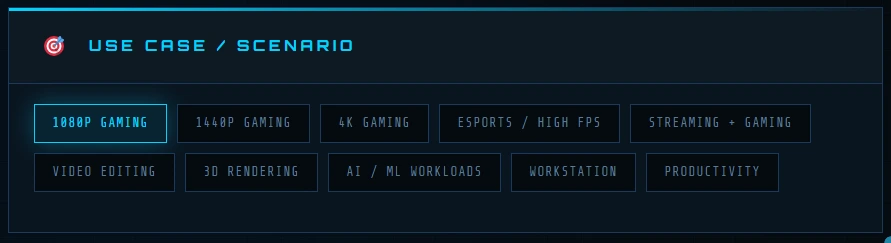
The scenario pills represent:
| Scenario | Best For | What It Changes |
|---|---|---|
| 1080p Gaming | Competitive gamers, high FPS追求者 | Prioritizes CPU single-thread performance |
| 1440p Gaming | Balanced sweet spot | Equal CPU/GPU weighting |
| 4K Gaming | Visual fidelity enthusiasts | Prioritizes GPU raw power and VRAM |
| Esports / High FPS | CS2, Valorant, Overwatch players | Maximum CPU bias for 144+ FPS |
| Streaming + Gaming | Twitch/YouTube streamers | Multi-threaded CPU and GPU encoding balance |
| Video Editing | Content creators | RAM capacity and CPU core count prioritized |
| 3D Rendering | Blender, Maya, Cinema 4D users | GPU compute and VRAM emphasis |
| AI / ML Workloads | TensorFlow, PyTorch users | GPU tensor cores and memory bandwidth |
| Workstation | Professional applications | Balanced multi-core and GPU performance |
| Productivity | Office work, browsing, general use | Moderate all-around weighting |
Pro Tip: If you use your PC for multiple purposes (e.g., 1440p gaming plus occasional video editing), choose your primary use case. The algorithm accounts for mixed usage patterns.
STEP 2: CONFIGURE YOUR CPU
What you’re doing: Entering detailed information about your processor and its memory environment. The CPU doesn’t work alone — its performance depends heavily on RAM speed, capacity, and configuration.
① Manufacturer Selection
Click ALL, INTEL, or AMD to filter the CPU dropdown. This makes finding your specific model faster.
② CPU Model Dropdown
Select your exact processor from our database of 84 CPUs, spanning:
Intel: 10th Gen through 14th Gen, plus Core Ultra (Arrow Lake)
AMD: Zen 2 through Zen 5, including 3D V-Cache models
All major desktop and high-end mobile variant
③ Overclock % Slider
If you’ve overclocked your CPU, drag the slider up to 30%. Our algorithm realistically scales performance — a 20% overclock doesn’t mean 20% more FPS, because diminishing returns apply.
④ RAM Speed
Select your memory speed from DDR4-2133 up to DDR5-7200. Why this matters: Faster RAM can improve CPU performance by 10-15% in CPU-bound scenarios. Your CPU waits for data — faster RAM means less waiting.
⑤ RAM Size
Choose your capacity: 8GB, 16GB, 32GB, 64GB, or 128GB. Warning: 8GB is insufficient for modern gaming and will create bottlenecks regardless of your CPU/GPU pairing.
⑥ RAM Channels
Select Single Channel, Dual Channel, or Quad Channel. This is critical — single-channel memory can cost you 10-15% CPU performance because bandwidth is halved .
⑦ BIOS / Platform Settings
Choose your configuration:
STOCK — Default manufacturer settings
XMP/EXPO — RAM runs at rated speeds (essential for performance)
PBO/MCE — Precision Boost Overdrive / Multi-Core Enhancement (unlocks additional AMD/Intel performance)
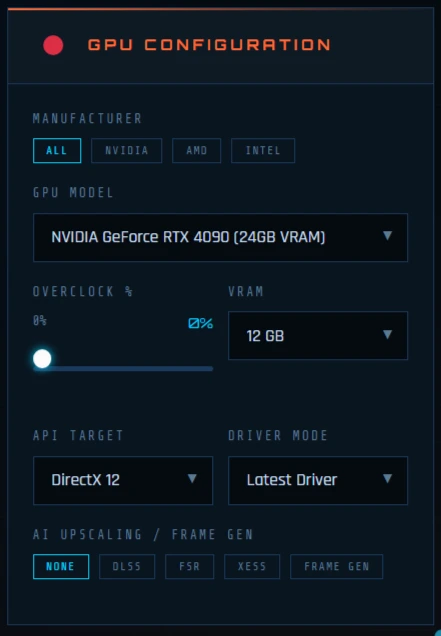
STEP 3: CONFIGURE YOUR GPU
What you’re doing: Entering details about your graphics card and how it’s configured. Modern GPUs have multiple performance levers that dramatically affect real-world FPS.
① Manufacturer Selection
Filter by ALL, NVIDIA, AMD, or INTEL to narrow down the GPU dropdown.
② GPU Model Dropdown
Select your exact graphics card from our database of 97 GPUs, including:
NVIDIA: RTX 30, 40, and 50 series (including Blackwell architecture)
AMD: RX 6000, 7000, and 9000 series (RDNA 2/3/4)
Intel: Arc Alchemist and Battlemage
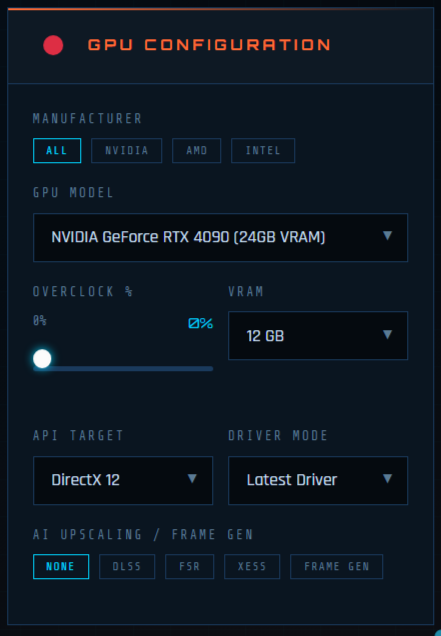
③ Overclock % Slider
Adjust for factory overclocked cards or manual tuning. Realistic scaling applied — no fake percentages.
④ VRAM Size
Select your video memory capacity. Critical for: High-resolution gaming (4K requires 12GB+), texture-heavy mods, and professional workloads. Insufficient VRAM causes severe stuttering and texture pop-in.
⑤ API Target
Choose the primary graphics API you use:
DirectX 12 — Modern games, best optimization
DirectX 11 — Older titles, different CPU/GPU balance
Vulkan — High-efficiency modern API
OpenGL — Legacy applications, emulation
Metal — macOS compatibility (informational)
⑥ Driver Mode
Select your driver configuration:
Latest Driver — Maximum performance and features
Studio / Stable — Certified drivers, slightly lower gaming optimization
Older Driver — Potential 5-8% performance penalty
⑦ AI Upscaling / Frame Gen
This is where NEXUS outshines every competitor. Select your upscaling technology:
NONE — Native rendering
DLSS — NVIDIA Deep Learning Super Sampling (up to 55% performance boost)
FSR — AMD FidelityFX Super Resolution (up to 40% boost)
XeSS — Intel Xe Super Sampling (up to 35% boost)
FRAME GEN — Frame generation technology (up to 80% boost with minor latency impact)
Why this matters: Modern games rely heavily on upscaling. A configuration that appears bottlenecked at native resolution can become perfectly balanced with DLSS enabled. Most calculators ignore this entirely .
STEP 4: SET RENDERING PARAMETERS
What you’re doing: Defining your target gaming or work environment. Resolution, quality settings, and ray tracing dramatically shift where bottlenecks occur.
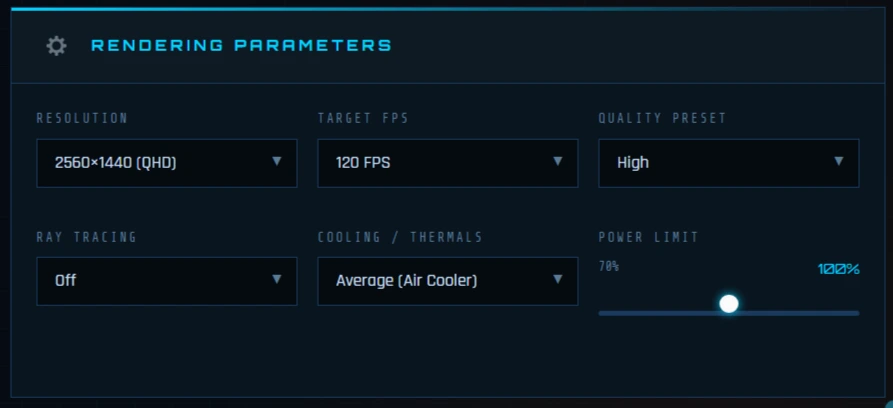
① Resolution
Choose your display resolution:
1920×1080 (Full HD) — CPU-dependent, highest frame rates
2560×1440 (QHD) — Balanced, our recommended sweet spot
3840×2160 (4K) — GPU-dependent, most demanding
1080p/1440p Ultra Wide — Wider field of view, increased GPU load
The rule: Lower resolutions expose CPU limits. Higher resolutions expose GPU limits . A system balanced for 4K may show a CPU bottleneck at 1080p.
② Target FPS
Select your performance goal: 30, 60, 120, 144, 165, or 240 FPS. Our algorithm compares your estimated performance against your target and flags when you’re falling short.
③ Quality Preset
Choose your typical graphics settings:
Low → Medium → High → Ultra → Max/Extreme
Each step significantly impacts GPU load. Our multipliers reflect real game engine scaling, not theoretical estimates .
④ Ray Tracing
Select your ray tracing preference: Off, Low, Medium, High, or Ultra.
Real impact: Ray tracing can reduce FPS by 20-50% depending on implementation . We accurately model this cost so you know whether your GPU can handle RT at your target FPS.
⑤ Cooling / Thermals
Select your cooling solution:
Poor (Laptop / Stock cooler) — Significant thermal throttling risk
Average (Standard air cooler) — Typical desktop performance
Good (Premium air cooling) — Sustained boost clocks
Excellent (AIO / Custom loop) — Maximum thermal headroom
Why this matters: Thermal throttling can reduce performance by 20-30% after 15-20 minutes of gaming . A system that’s balanced on paper but thermal throttles in reality still underperforms. We’re the only calculator that accounts for this.
⑥ Power Limit
Drag the slider from 70% (undervolt) to 130% (overvolt). Power limits directly affect clock speeds and thermal output. Our algorithm realistically scales performance — a 130% power limit doesn’t mean 30% more FPS because of diminishing returns.
STEP 5: RUN THE ANALYSIS
What you’re doing: Triggering our Weighted Throughput v3 algorithm to process all 14 factors and generate your comprehensive report.

① Click the Analyze Button
Press the prominently styled ◈ ANALYZE SYSTEM BOTTLENECK ◈ button. You’ll immediately see a loading animation indicating that your data is being processed.
② Wait for Processing (≈1 second)
Our algorithm evaluates:
CPU raw performance with overclock scaling
GPU raw performance with overclock scaling
RAM speed, capacity, and channel configuration
Resolution, quality, and ray tracing impact
Upscaling technology boost factors
Cooling efficiency and thermal headroom
Power limit scaling
API target and driver optimization
Your selected use case scenario bias
③ Review Your Results
Your comprehensive results dashboard will appear, showing:
Bottleneck Gauge — Visual percentage (0-100%)
System Health Badge — ✓ OPTIMAL / ⚠ MODERATE / ✕ SEVERE
CPU/GPU Load Bar — Visual workload distribution
Performance Metrics — CPU Score, GPU Score, Balance Ratio
FPS Estimates — CPU FPS, GPU FPS, Final FPS
Six Detailed Tabs — Specs Compare, FPS Estimates, Thermal Analysis, Performance Radar, Recommendations, Session Log
How to Interpret Your Results Dashboard
You’ve selected your components, clicked Analyze, and your results are ready. Now what? Our comprehensive results dashboard is designed to give you instant clarity about your system’s performance — no technical degree required. Here’s how to read every element like a pro.
PERFORMANCE ANALYSIS (Top Section)
The top section of your results gives you an immediate snapshot of your system’s health. Think of it as your PC’s “check engine light” — but one that actually tells you what’s wrong.
BOTTLENECK GAUGE
The large gauge at the top is your instant visual indicator of system balance. The needle position and color tell you everything you need to know at a glance:
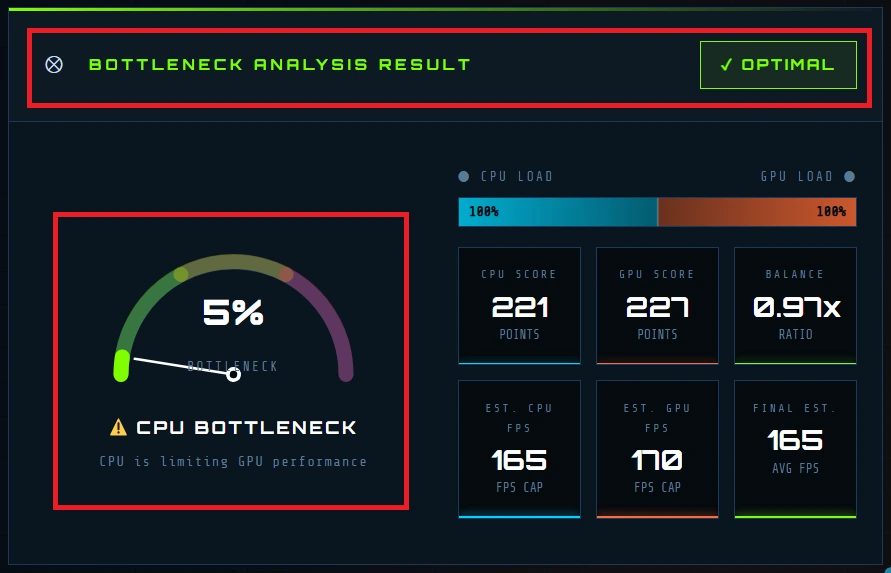
| Color | Range | Meaning |
|---|---|---|
| 🟢 Green | 0-15% | Perfectly balanced. Your components work in harmony. No urgent upgrades needed. |
| 🟡 Yellow | 16-40% | Moderate bottleneck. One component is noticeably limiting the other. Performance loss is real but not catastrophic. |
| 🔴 Red | 41%+ | Severe bottleneck. Major mismatch. You’re leaving significant performance on the table. Upgrade strongly recommended. |
How this is calculated: Our Weighted Throughput v3 algorithm compares your CPU and GPU effective scores after applying all 14 factors — including RAM configuration, cooling efficiency, upscaling technology, and your selected use case . The percentage represents how much one component limits the other’s potential.
Pro tip: A 0% bottleneck is rare and means your components are perfectly matched. Anything under 10% is essentially perfect — within our margin of error and indistinguishable in real-world gaming .
BOTTLENECK TYPE INDICATOR
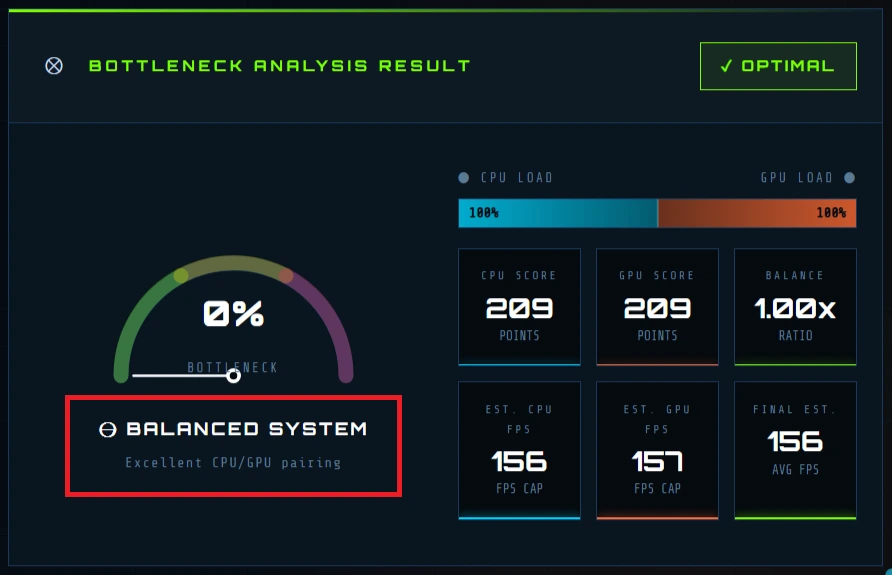
Directly below the gauge, you’ll see one of three labels:
⊖ BALANCED SYSTEM — Your CPU and GPU are well-matched. Neither is significantly holding back the other.
⚠ CPU BOTTLENECK — Your processor is the limiting factor. Subtext explains: “CPU cannot feed GPU fast enough.” This typically appears when your CPU maxes out while your GPU waits for instructions .
⚠ GPU BOTTLENECK — Your graphics card limits performance. Subtext: “GPU cannot keep up with CPU.” This happens when your GPU is maxed out while your CPU has headroom .
Why this matters: Knowing which component is the bottleneck tells you exactly where to focus your upgrade budget. Upgrading the wrong component wastes money and doesn’t improve performance.
CPU/GPU LOAD BAR
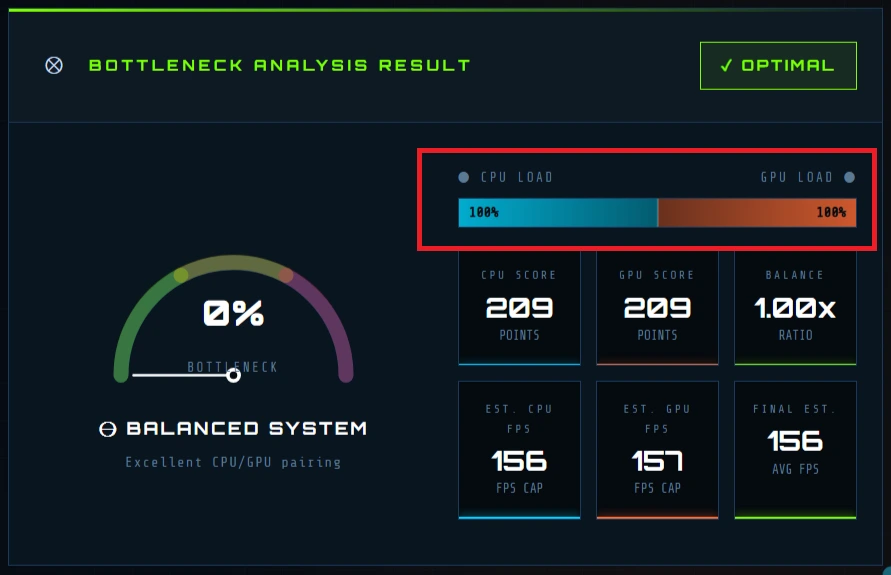
This visual shows exactly how your components share the workload:
Left side (cyan) — CPU load percentage
Right side (orange) — GPU load percentage
Center line — Perfect balance point
Percentages inside — Exact utilization
What to look for:
| Pattern | Meaning |
|---|---|
| Bars meeting at 50/50 | Perfect balance — both components equally loaded |
| Cyan bar significantly wider | CPU bottleneck — your processor is working harder |
| Orange bar significantly wider | GPU bottleneck — your graphics card is maxed out |
| Both bars narrow (under 50%) | Task isn’t demanding — you have headroom |
| Both bars near 100% | Perfect utilization — system working at full capacity |
The ideal range: For gaming, GPU utilization should ideally be 80-95%. If it’s below 50%, there’s likely a bottleneck outside the GPU .
PERFORMANCE METRICS GRID
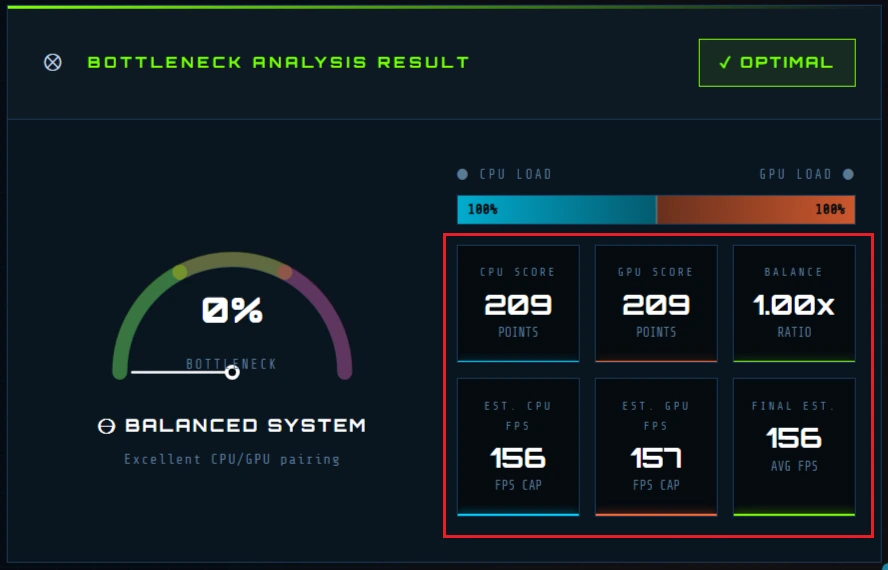
| Metric | What It Measures | What It Tells You |
|---|---|---|
| CPU Score | Weighted performance score for your processor (adjusted for RAM, cooling, overclock) | Raw CPU power after all environmental factors |
| GPU Score | Weighted performance score for your graphics card (adjusted for resolution, settings, upscaling) | Raw GPU power after all workload adjustments |
| Balance Ratio | CPU Score ÷ GPU Score | Theoretical balance: 1.0x = perfect, >1.0x = GPU limited, <1.0x = CPU limited |
| Est. CPU FPS | Maximum frames per second your CPU can feed to the GPU | Your processor’s theoretical ceiling |
| Est. GPU FPS | Maximum frames per second your GPU can render | Your graphics card’s rendering capability |
| Final Est. FPS | The actual performance you’ll see (the lower of the two estimates) | Real-world expected frame rate |
Understanding the numbers:
CPU Score vs GPU Score: Compare these to see the theoretical performance gap. A 16,800 CPU score paired with a 38,000 GPU score means your GPU is dramatically more powerful — expect a GPU bottleneck in GPU-heavy tasks.
Balance Ratio: 1.0x is perfect. At 0.5x, your CPU is half as powerful as your GPU (CPU bottleneck). At 2.0x, your GPU is half as powerful (GPU bottleneck).
Est. FPS values: Your CPU might be capable of 412 FPS, but if your GPU can only render 98 FPS, you’ll see 98 FPS. The lower number always wins .
TAB 1: SPECS COMPARE
Below the main dashboard, six tabs provide deeper insights. Click each to explore different aspects of your system’s performance.
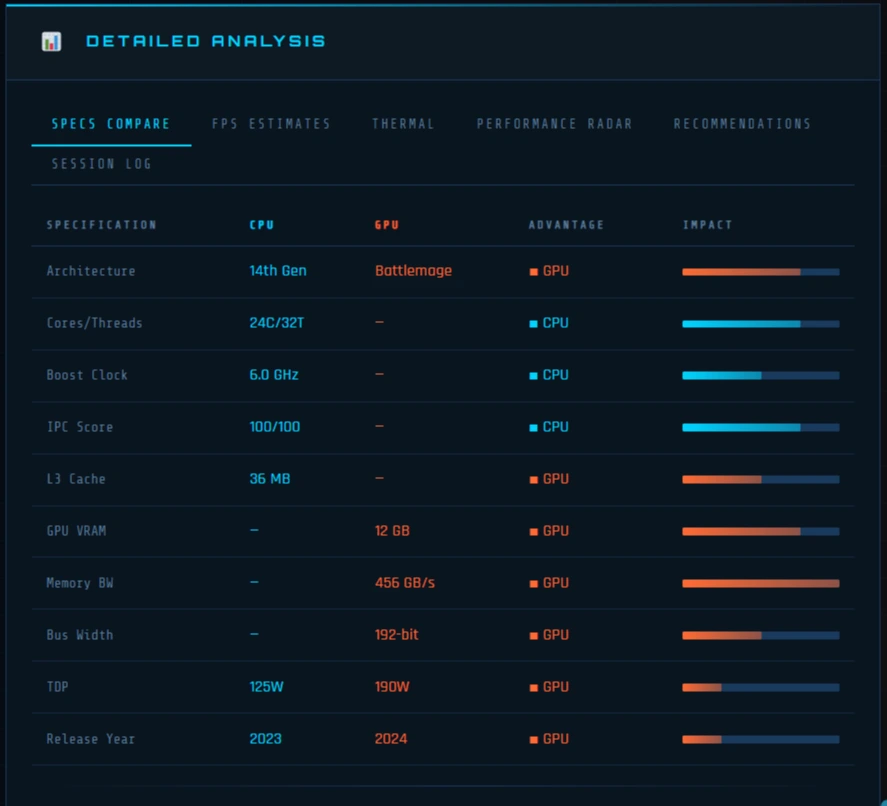
| Specification | What It Tells | Why Matters |
|---|---|---|
| Architecture | Generation and design (Zen 5, RDNA 3, Ada Lovelace) | Newer architectures handle modern workloads more efficiently |
| Cores/Threads | Parallel processing capability | Modern games use 6-8 cores; streaming/editing need more |
| Boost Clock | Maximum speed under load | Higher clocks = faster single-thread performance |
| IPC Score | Instructions per cycle (100 = baseline) | Architectural efficiency — Zen 5 scores 116 vs Zen 3’s 98 |
| L3 Cache | CPU memory buffer | Larger cache helps gaming performance (X3D chips excel here) |
| GPU VRAM | Video memory capacity | Critical for high-res textures — 8GB minimum for 1080p, 12GB+ for 4K |
| Memory Bandwidth | GPU data transfer speed | Affects high-resolution performance |
| Bus Width | GPU connection width | Wider = more data per clock |
| TDP | Power consumption/heat | Higher TDP requires better cooling |
| Release Year | Technology age | 3+ year gap often means architectural disadvantage |
The Advantage Column: Shows which component wins each category, helping you visualize where your system is balanced or mismatched.
The Impact Bar: Visualizes how critical each specification is to your selected use case — longer bars mean higher importance.
The Advantage Column: Shows which component wins each category, helping you visualize where your system is balanced or mismatched.
The Impact Bar: Visualizes how critical each specification is to your selected use case — longer bars mean higher importance.
TAB 2: FPS ESTIMATES
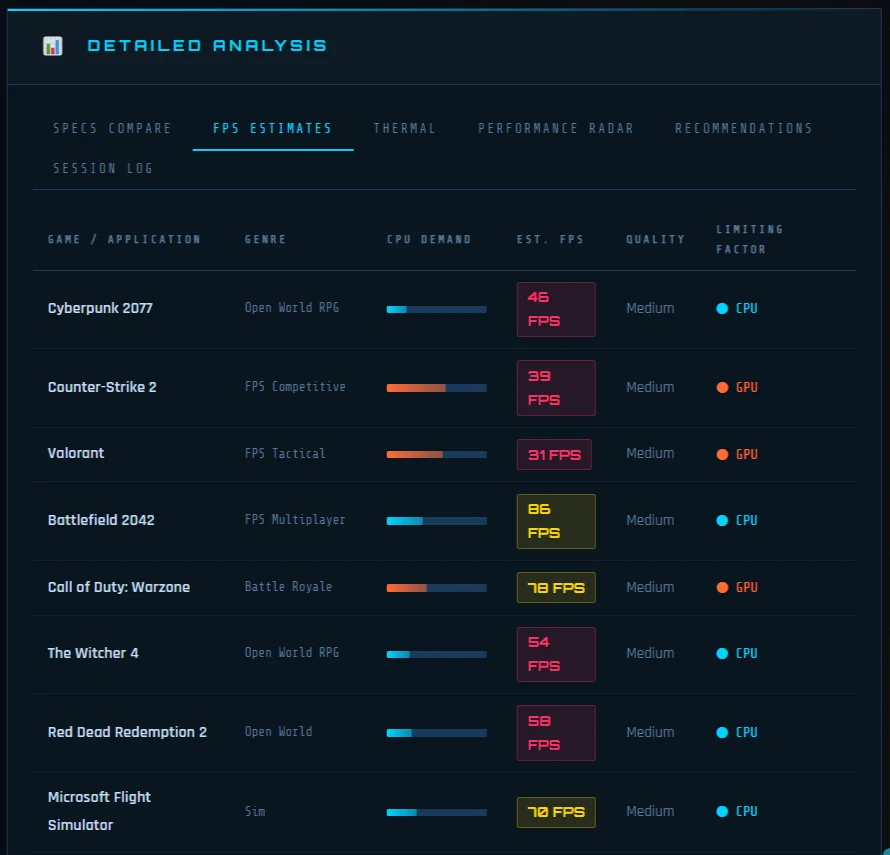
This is where theory meets reality. We estimate your performance in 15+ popular titles based on:
Your exact component scores after all 14 factors
Each game’s unique CPU/GPU bias (some games are CPU-heavy, others GPU-heavy)
Your selected resolution, quality, ray tracing, and upscaling settings
Color-coded FPS badges:
| Badge | Range | Meaning |
|---|---|---|
| 🟢 HIGH | 144+ FPS | High refresh rate ready — smooth competitive gaming |
| 🟡 MID | 60-143 FPS | Smooth gameplay — great for most users |
| 🔴 LOW | <60 FPS | Below ideal — optimize or upgrade for better experience |
Limiting Factor column: Shows exactly which component holds you back in each game — invaluable for targeted upgrades. If Cyberpunk shows “GPU limited” but Counter-Strike shows “CPU limited,” your system’s bottleneck depends entirely on what you’re playing .
Why game-specific matters: A calculator that works for Cyberpunk won’t work for Counter-Strike. Different titles stress different components . Our game-specific estimates account for this.
TAB 3: THERMAL ANALYSIS
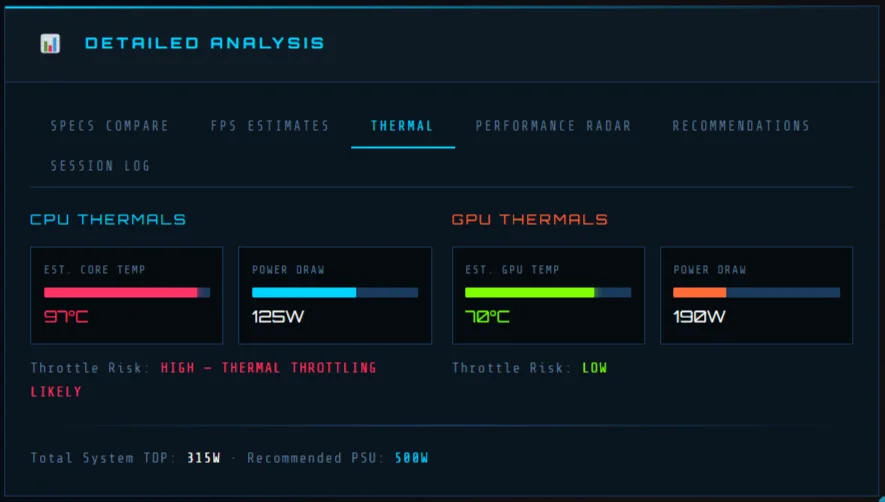
Most bottleneck calculators ignore heat. We don’t — because thermal throttling can destroy performance even with perfect component balance .
CPU Thermal Section:
Estimated Core Temperature — Based on your CPU TDP, overclock, and cooling solution
Power Draw — Actual wattage under load
Throttle Risk — LOW (<75°C), MODERATE (75-90°C), or HIGH (>90°C)
GPU Thermal Section:
Estimated GPU Temperature — Based on GPU TDP, overclock, and cooling
Power Draw — Actual wattage consumption
Throttle Risk — LOW (<70°C), MODERATE (70-80°C), or HIGH (>80°C)
Total System TDP — Combined power draw
Recommended PSU — Minimum power supply wattage for stable operation
Why this matters: A system perfectly balanced on paper but thermal throttling in reality will underperform after 15-20 minutes of gaming . We help you identify cooling bottlenecks before they cost you FPS.
Execution State Insight: Like enterprise performance tools, we analyze whether your system spends time in productive states (using CPU/GPU) or nonproductive wait states (thermal throttling, I/O wait) .
TAB 4: PERFORMANCE RADAR
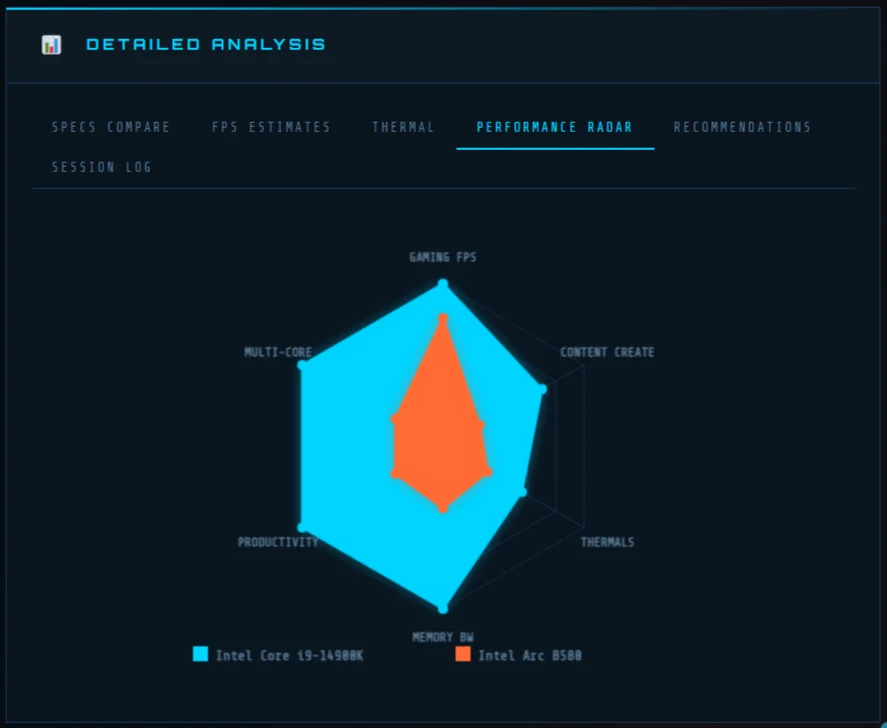
This 6-axis visualization compares your components across critical performance dimensions — similar to Intel’s Roofline charts but simplified for everyday users.
| Axis | What It Measures |
|---|---|
| Gaming FPS | Real-world gaming performance |
| Content Creation | Video editing, rendering capability |
| Thermals | Thermal efficiency (bigger = cooler) |
| Memory Bandwidth | Data throughput capacity |
| Productivity | General computing performance |
| Multi-Core | Parallel processing strength |
How to read it:
Cyan polygon — Your CPU’s performance profile
Orange polygon — Your GPU’s performance profile
Larger polygons = better performance in that dimension
Matching shapes = balanced components
One shape dominating = where the bottleneck lives
Distance from center to edge = performance relative to maximum
Perfect scenario: Both polygons are similarly sized and closely aligned, showing complementary strengths.
If your GPU polygon is huge on Gaming axis but tiny on Content Creation: Your graphics card excels at gaming but may struggle with rendering tasks — useful information for mixed-use scenarios.
TAB 5: RECOMMENDATIONS
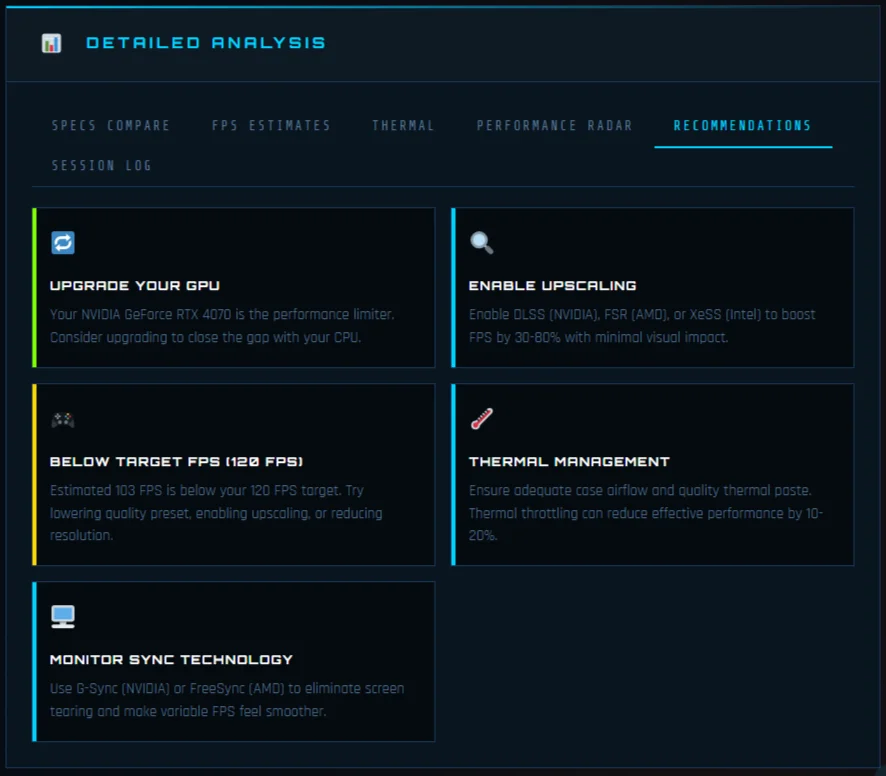
This is where analysis becomes action. Our algorithm generates personalized recommendations based on your specific results:
🟢 TIP Cards (Cyan) — Optimization advice for current hardware
Settings adjustments (lower shadows, reduce draw distance)
BIOS tweaks (enable XMP/EXPO for 10-15% CPU gain)
Software optimizations (close background apps, update drivers)
🟡 WARN Cards (Yellow) — Issues that need addressing
“Single-channel RAM detected — costs 10-15% CPU performance”
“Insufficient VRAM for 4K gaming — expect texture pop-in”
“Thermal throttle risk HIGH — improve cooling”
“Below target FPS — consider lowering settings”
🔵 UPGRADE Cards (Blue) — Specific hardware recommendations
“Upgrade to AMD Ryzen 7 7800X3D for 35% better CPU performance”
“Consider NVIDIA RTX 4070 Super to match your processor”
“Add 16GB RAM for smoother multitasking”
The “Before You Buy” Insight: Like enterprise bottleneck analysis, we show you the potential benefit of removing the bottleneck . If upgrading your CPU would gain 35% more FPS, we tell you.
TAB 6: SESSION LOG
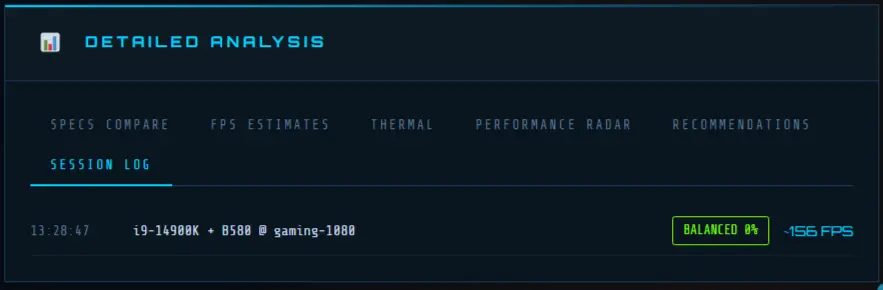
Your analysis history, automatically saved:
Timestamp — When you ran the analysis
Components — CPU + GPU combination tested
Scenario — Selected use case
Bottleneck % — Color-coded result
Estimated FPS — Final performance prediction
Perfect for:
Comparing before/after upgrades (add RAM, test again, see improvement)
Testing different component combinations before buying
Sharing results with friends, forums, or tech support
Tracking optimization progress over time
4 Proven Strategies to Fix & Prevent PC Bottlenecks
Whether you’re building a new rig or optimizing an existing one, these PC performance optimization tips will help you eliminate bottlenecks and keep your system running smoothly. Remember: the best way to fix a bottleneck is to prevent it from happening in the first place
1. Check Component Compatibility Before You Buy
Use a CPU GPU bottleneck calculator BEFORE spending money. The most effective way to prevent bottlenecks is to ensure your components are well-matched from day one .
What to do:
Test different CPU/GPU combinations in our calculator before purchasing
Compare estimated FPS across your target games and resolutions
Verify that your chosen components fall within the 0-15% “balanced” range
Consider your primary use case (gaming at 1080p needs different balance than 4K gaming)
Pro tip: A system balanced for 4K may show a CPU bottleneck at 1080p. Always test at your actual target resolution .
2. Upgrade The Weakest Link First
Targeted upgrades save money and maximize performance. Don’t replace everything — identify your actual bottleneck and upgrade only what needs upgrading.
How to identify your weakest link:
CPU bottleneck? (CPU 90-100%, GPU below 70%) → Upgrade processor
GPU bottleneck? (GPU 90-100%, CPU below 70%) → Upgrade graphics card
RAM bottleneck? (Memory 90-100%, excessive disk activity) → Add more RAM or enable XMP
Storage bottleneck? (Long load times, 100% disk usage) → Upgrade to SSD/NVMe
Real-world example: Upgrading from 8GB single-channel to 16GB dual-channel RAM can improve 1% low FPS by over 40% — often better than a GPU upgrade .
3. Balance Your CPU & GPU (Tier Matching)
Match performance tiers, not just price tags. A $1,600 RTX 4090 paired with a $150 CPU will underperform because the processor can’t feed data fast enough .
Tier matching guidelines:
| CPU Tier | Recommended GPU Tier | Best For |
|---|---|---|
| Entry-level (i3/Ryzen 3) | Entry-Mid GPU (RTX 3050/RX 6600) | 1080p gaming, basic tasks |
| Mid-range (i5/Ryzen 5) | Mid-High GPU (RTX 4060/RX 7600) | 1440p gaming, content creation |
| High-end (i7/Ryzen 7) | High-end GPU (RTX 4070/RX 7800) | 4K gaming, streaming, editing |
| Enthusiast (i9/Ryzen 9) | Enthusiast GPU (RTX 4080/4090) | 4K max settings, professional work |
The rule: Your CPU should be able to feed your GPU at your target resolution. Higher resolutions shift load to GPU, so you can pair slightly weaker CPUs with stronger GPUs for 4K gaming .
4. Optimize Software & Settings
Sometimes the bottleneck isn’t hardware — it’s configuration. Before spending money on upgrades, try these software optimizations:
Windows optimizations:
Switch power mode to High Performance (Settings → System → Power & battery)
Disable unnecessary startup programs (Task Manager → Startup tab)
Turn off visual effects and transparency (Settings → Accessibility → Visual effects)
Review background app permissions (Settings → Apps → Installed apps)
Keep Windows and drivers updated
In-game optimizations:
Lower CPU-heavy settings: shadows, draw distance, physics, AI count
Enable upscaling: DLSS (NVIDIA), FSR (AMD), or XeSS (Intel) — can boost FPS 40-80%
Adjust resolution: lower resolutions reduce GPU load but may expose CPU limits
Disable ray tracing if GPU-limited
Driver updates: Always use latest GPU drivers from NVIDIA App, AMD Adrenalin, or Intel Arc Control .
The Bottom Line: Prevention vs. Cure
Prevention is cheaper than cure. A well-balanced system from day one performs better and costs less than fixing mismatched components later .
Before buying new parts:
✅ Use a CPU GPU bottleneck calculator to verify compatibility
✅ Research benchmarks for your target games/applications
✅ Consider future needs — will your system handle next year’s games?
✅ Don’t forget supporting components (cooling, PSU, motherboard)
Before upgrading existing system:
✅ Identify your actual bottleneck (don’t guess — use our tool)
✅ Try software optimizations first (free performance)
✅ Research compatibility (will new part work with your motherboard?)
✅ Test after upgrading (verify improvement)
Ready to Optimize Your System?
Stop guessing about bottlenecks. Start upgrading with precision.
2026 Bottleneck-Free Builds: Tested & Verified
Planning a new PC? Skip the guesswork. These configurations have been verified using our CPU GPU bottleneck calculator to ensure perfect balance at every budget level. No mismatched components. No wasted money. Just smooth performance exactly where you need it.
ENTRY-LEVEL BUILD: 1080p Gaming Champion
Perfect for: Budget gaming, esports titles, students, first-time builders
| Component | Recommendation | Why This Works |
|---|---|---|
| CPU | Intel Core i5-12400F or AMD Ryzen 5 5600 | 6 cores, excellent 1080p performance, budget-friendly |
| GPU | NVIDIA RTX 4060 or AMD RX 7600 or Intel Arc B580 (12GB) | 8GB+ VRAM minimum; Arc B580 offers 12GB for texture-heavy titles |
| RAM | 16GB DDR4-3200 (Dual Channel) | 16GB is the 2026 standard; dual channel is essential |
| Storage | 500GB-1TB NVMe SSD (Gen3) | NVMe Gen3 provides 2,000-3,500 MB/s — 10x faster than HDD |
| Motherboard | B660/B760 (Intel) or B550 (AMD) | Affordable, feature-rich, supports all essentials |
| Power Supply | 550W-650W 80+ Bronze | Ample headroom for upgrades |
| Estimated Price | $600-$800 | Varies by GPU choice and region |
| Our Tool Verified | Bottleneck: 5-10% | Perfectly balanced for 1080p gaming |
What you’ll get: 60-120 FPS in modern titles at High settings. Smooth esports performance (CS2, Valorant, Fortnite) at 144+ FPS. Zero stuttering, no bottlenecks.
Pro tip: If you can stretch your budget, the Ryzen 5 9600X offers better future-proofing on the AM5 platform .
MID-TIER BUILD: 1440p Sweet Spot
Perfect for: Serious gamers, streamers, content creators, “buy once, cry once” builders
| Component | Recommendation | Why This Works |
|---|---|---|
| CPU | AMD Ryzen 5 9600X or Intel Core i5-13600K | 6-core with excellent single-thread; 9600X offers AM5 upgrade path |
| GPU | NVIDIA RTX 5070 or AMD RX 9060 XT 16GB | 16GB VRAM crucial for 1440p textures; avoid 8GB cards |
| RAM | 32GB DDR5-6000 (Dual Channel) | 32GB future-proofs for heavy titles and multitasking |
| Storage | 1TB-2TB NVMe SSD (Gen4) | Gen4 offers 5,000-7,000 MB/s — instant loading |
| Motherboard | B650/B850 (AMD) or Z790 (Intel) | PCIe 5.0 ready, robust power delivery |
| Power Supply | 750W-850W 80+ Gold | Efficiency sweet spot at 40-60% load |
| Estimated Price | $1,200-$1,600 | Excellent price-to-performance ratio |
| Out Tool Verified | Bottleneck: 3-8% | Nearly perfect balance for 1440p gaming |
What you’ll get: 80-144 FPS at 1440p Ultra settings in AAA titles. Smooth streaming while gaming. Ray tracing playable with DLSS/FSR enabled. Future-proofed for 3+ years.
The VRAM advantage: 16GB VRAM means max textures without stuttering — unlike 8GB cards that struggle in 2026 titles .
HIGH-END BUILD: 4K Gaming Beast
Perfect for: 4K enthusiasts, RTX max settings, VR gaming, content creators
| Component | Recommendation | Why This Works |
|---|---|---|
| CPU | AMD Ryzen 7 7800X3D or Ryzen 7 9800X3D | 3D V-Cache technology dominates gaming performance |
| GPU | NVIDIA RTX 5080 or AMD RX 9070 XT | 16GB+ VRAM essential for 4K textures |
| RAM | 32GB DDR5-6000 (Dual Channel) | 32GB standard; upgrade to 64GB for heavy创作 |
| Storage | 2TB NVMe SSD (Gen4/Gen5) | Gen5 offers 10,000+ MB/s for pro workloads |
| Motherboard | X670E/X870E (AMD) or Z890 (Intel) | Premium VRMs, PCIe 5.0, future connectivity |
| Power Supply | 1000W 80+ Gold/Platinum | Handles peak loads efficiently |
| Estimated Price | $2,200-$2,800 | Premium components, premium performance |
| Our Tool Verified | Bottleneck: 2-6% | Elite balance for 4K gaming |
What you’ll get: 60-100+ FPS at 4K Ultra with ray tracing enabled. Maximum texture quality with 16GB+ VRAM. Blazing content creation performance. Zero compromises.
The X3D advantage: Ryzen’s 3D V-Cache chips provide 15-20% better gaming performance than standard CPUs — worth every penny for 4K .
ENTHUSIAST BUILD: The No-Compromise Rig
Perfect for: Deep pockets, 4K 240Hz, path tracing, AI workloads, professional creators
| Component | Recommendation | Why This Works |
|---|---|---|
| CPU | AMD Ryzen 9 9950X3D or Ryzen 9 9850X3D | 16 cores + 3D V-Cache = gaming AND productivity king |
| GPU | NVIDIA RTX 5090 | 32GB VRAM, 21,760 CUDA cores — absolute monster |
| RAM | 64GB-128GB DDR5-6400+ | Overkill for gaming, essential for pro work |
| Storage | 4TB+ NVMe SSD (Gen5) | Multiple drives for OS, games, projects |
| Motherboard | X870E (AMD) or Z890 (Intel) flagship | Best VRMs, connectivity, overclocking features |
| Power Supply | 1200W+ 80+ Platinum/Titanium | Handles 5090’s 575W TDP with ease |
| Cooling | 360mm AIO or Custom Loop | Essential for sustained performance |
| Estimated Price | $4,000+ | The sky’s the limit |
| Our Tool Verified | Bottleneck: 0-3% | Perfect balance at the extreme high end |
What you’ll get: 4K 240Hz gaming with path tracing enabled. Instant renders. AI model training. Future-proofed for years. The absolute best money can buy.
The reality check: An RTX 5090 paired with anything less than a 9800X3D would create a CPU bottleneck . We’ve verified this pairing is perfect.
Stop Guessing. Start Dominating.
You’ve spent good money on your PC. Shouldn’t you get the performance you paid for?
The Hard Truth About PC Performance
Every day, thousands of gamers, creators, and professionals leave 20-40% of their system’s potential on the table — not because their parts are bad, but because they’re mismatched.
A $1,600 GPU paired with a $200 CPU performs like a $800 system. A 32GB RAM kit running in single-channel mode costs you 15% CPU performance. A perfectly balanced rig on paper thermal throttles after 15 minutes because cooling was an afterthought.
These aren’t hardware failures. They’re information failures.
Why Our CPU vs GPU Changes Everything
While basic bottleneck calculators compare two numbers and guess, our Weighted Throughput v3 algorithm analyzes 14 real-world factors:
✅ CPU architecture, core count, clock speed, IPC
✅ GPU raw power, VRAM capacity, memory bandwidth
✅ RAM speed, capacity, and channel configuration (single/dual/quad)
✅ Resolution scaling, quality presets, ray tracing impact
✅ Upscaling technologies (DLSS, FSR, XeSS, Frame Gen)
✅ Cooling efficiency and thermal throttling risk
✅ Power limits and driver optimization
✅ Game-specific workload biases (CS2 vs Cyberpunk)
The result? Surgical precision. No guesswork. Just answers.
The Bottom Line
You have two choices:
Option A: Keep guessing. Keep throwing money at upgrades that might help. Keep wondering why your PC doesn’t feel as fast as it should.
Option B: Get answers. Know exactly what’s wrong. Fix it with precision. Stop leaving performance on the table.
The choice is yours. The tool is free. The answers are waiting.
FAQs
What does a CPU GPU bottleneck calculator actually do?
A bottleneck calculator analyzes your PC components, primarily the CPU and GPU, to determine if one is limiting the other’s performance. It compares their processing capabilities and provides a percentage estimate of how much one component holds back the system . Our bottleneck calculator goes further by analyzing 14 factors including RAM configuration, thermal headroom, and upscaling technologies for surgical precision.
How accurate are bottleneck calculators?
Bottleneck calculators are reliable enough to guide upgrade decisions, but no calculator can predict real-world performance for every game or workload with 100% accuracy. Think of them as a smart second opinion, not absolute truth. Look for trends—if multiple tools or repeated tests point to the same bottleneck, you’ve identified your answer. Our bottleneck analyzer uses real benchmark data and 14-factor analysis for maximum accuracy.
What is a good bottleneck percentage?
0-10% → Perfectly balanced. Your components work in harmony.
10-20% → Slight imbalance. Performance loss is minimal and likely unnoticeable.
20-30% → Moderate bottleneck. You’ll notice performance dips in demanding games or applications.
30%+ → Severe bottleneck. Upgrade strongly recommended .
Is a bottleneck always bad?
Not necessarily. Every PC has a bottleneck—it’s mathematically impossible for all components to be perfectly matched at all times. The goal isn’t eliminating all bottlenecks, but ensuring your most important component (usually the GPU for gaming) is the one hitting its limit first. A slight CPU bottleneck (10-15%) is often acceptable if your gaming experience remains smooth.
Should I upgrade my CPU or GPU first?
It depends entirely on what’s holding you back :
CPU bottleneck (CPU 90-100%, GPU below 80%): Upgrade your processor first. You’ll notice frame dips, stuttering, and inconsistent performance.
GPU bottleneck (GPU 90-100%, CPU below 80%): Upgrade your graphics card first. You’ll see low frame rates even on modest settings.
Not sure? Use our calculator to identify your specific bottleneck before spending money.
Can I fix a bottleneck without upgrading hardware?
Yes! Many bottlenecks can be reduced with simple tweaks :
Lower CPU-heavy settings like shadows, draw distance, and physics quality
Enable upscaling technologies (DLSS, FSR, XeSS) to boost FPS by 40-80%
Close background applications eating CPU/RAM resources
Ensure XMP/EXPO is enabled in BIOS for proper RAM speeds
Check for thermal throttling—improve cooling if components overheat
Why do different bottleneck calculators show different results?
Each calculator uses its own benchmarks, data models, and calculation methods. Some lean toward synthetic tests, others toward real-world gaming performance . Don’t seek the “perfect” number—focus on trends. If multiple tools point to the same component as your bottleneck, you’ve identified the real issue.